
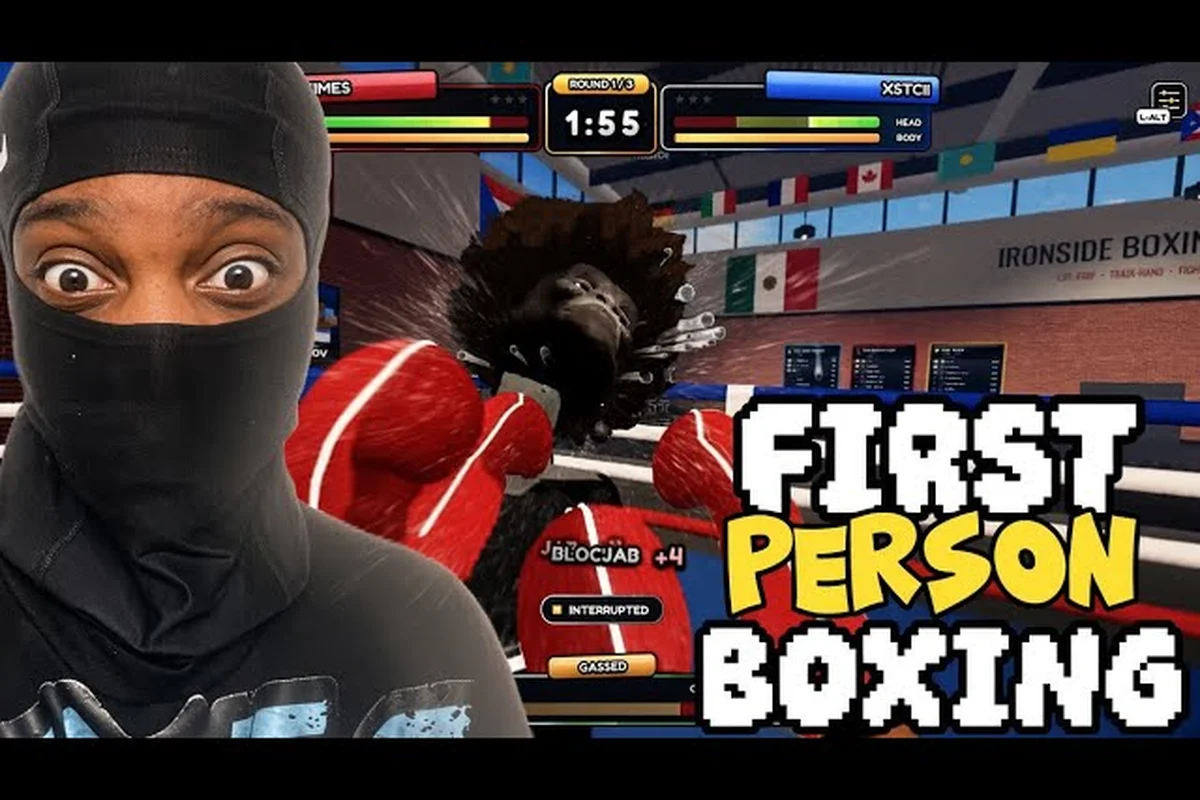
Touch screens and boxing don't always mix, but the developers of First Person Boxing designed a touch layout that feels closer to a controller than a chaotic grid of buttons. If you've just loaded the game on your phone and want to land clean shots without fumbling your thumbs, this walkthrough maps every tap, swipe, and hold on First Person Boxing mobile touch controls. You'll learn which finger does what, how the guard system splits into head and body coverage, and where the slip and counter inputs live on screen.
This matters because the game runs on PC, mobile, and console with the same five core mechanics — punches, slips, guards split into head guard and body guard, counters that can produce a knockout, and a stamina pool that slows you when it empties. On a phone, every one of those mechanics has a dedicated touch zone, and the difference between landing a counter and eating a hook usually comes down to thumb placement. Let's break the layout down so the punch button, block button, and dodge controls stop feeling like a guessing game.
Mobile Touch Controls Errors Worth Fixing
When you boot First Person Boxing on a phone, the screen divides into a few distinct zones. Your left thumb owns movement and camera, while your right thumb handles offense and defense. The right side of the screen stacks the most important combat inputs in a vertical column, and the left side gives you a virtual stick plus a swipe pad for looking around the ring.
The official description lists five mechanics, and each one has a corresponding touch input mapped to a specific screen region, not just a generic tap area. Below is the full mapping so you can memorize the zones — left thumb for the virtual stick and camera swipe, right thumb for the jab/cross buttons, block button, and the horizontal slip swipe — before stepping into your first match.
| Touch Zone | Location on Screen | Mechanic It Controls |
|---|---|---|
| Virtual stick | Lower left | Walk, strafe, circle the opponent |
| Camera swipe | Upper left | Look around, track head movement |
| Jab / cross buttons | Right column, middle | Punch inputs (jab, cross, hook) |
| Block button | Right column, lower | High guard + body guard toggle |
| Slip swipe | Center, horizontal drag | Dodge left or right |
| Counter tap | Double-tap punch zone | Counter input that can produce a KO |
The split between head guard and body guard lives behind a single button. A quick tap raises the high guard, while a hold-and-drag downward drops you into a body guard. That single touch zone covers both First Person Boxing guard controls, so you don't need to hunt for two separate buttons in the heat of a match.
Left Thumb Duties
Your left thumb sits on the virtual stick for the entire round. The stick handles forward, back, and lateral movement. Because First Person Boxing is a first-person ring simulation, you also need a way to look around, and that lives in the upper-left quadrant as a swipe pad. Swipe up to look down, swipe down to look up, and swipe horizontally to turn the camera without moving your feet.
Players who grew up on mobile shooters sometimes expect aim sensitivity to match an FPS, but the camera swipe here is deliberately slower. It mimics head movement rather than mouse aim, which is part of why slipping feels physical instead of digital. If you want a deeper breakdown of movement vs. aiming on lower-end phones, the mobile performance tuning guide covers frame pacing and touch latency.
Right Thumb Duties
Your right thumb does the heavy lifting. The right column of the screen stacks three to four buttons depending on your resolution, and the order never changes: punches sit on top, the block button sits in the middle, and any contextual action (like a taunt or counter prompt) appears at the bottom. Holding your thumb low on the screen keeps every input within reach without stretching.
One quirk worth noting: the First Person Boxing punch button actually expands into a small cluster on phones with extra screen real estate. The cluster separates jab, cross, and hook into individual chips, while smaller screens collapse them into a single punch zone that cycles based on direction. Either way, the tap target is large enough that mis-taps are rare once you settle into a rhythm.
Punches, Counters, and the Tap Rhythm
The punch system in First Person Boxing rewards clean inputs over spam. Each touch on the punch zone throws a single strike, and chaining taps builds simple one-two combos. If you want to throw hooks or uppercuts, the swipe pad on the punch zone lets you angle the strike — swipe left for a hook, swipe right for an uppercut, and the chip highlights the current angle.
Counters deserve special attention because they are the cleanest path to a knockout. A counter is registered by tapping the punch zone twice in quick succession while your opponent is mid-swing. The exact timing window is not published by the developer, so the safest mental model is: start your double-tap the instant you see their arm begin to move, and finish it before their glove reaches your face. The stamina pool plays a role here too — if you spam counters when you're tired, the second tap will be slow and the counter will whiff.
| Input | Gesture | Result |
|---|---|---|
| Single tap | Tap punch zone | Jab or cross depending on camera angle |
| Swipe + tap | Drag left/right on punch zone, then release | Hook or uppercut |
| Double tap | Two quick taps while opponent attacks | Counter that can produce a KO |
| Hold | Long press punch zone | Heavy commitment strike (drains stamina) |
Because First Person Boxing stamina values aren't published, treat every heavy strike as expensive and every jab as cheap. A common pattern that community players report is two jabs to set up a counter window, then a double-tap when the AI or human opponent retaliates. The First Person Boxing punch button cluster is forgiving enough that this rhythm becomes muscle memory after a few practice rounds.
Reading the Block Button
The First Person Boxing block button lives in the right column, usually directly below the punch cluster. A single tap raises the high guard and protects against head strikes. Holding the button and dragging down drops you into a body guard that blocks hooks to the ribs and body shots. Releasing the button returns you to a neutral stance, which is important because a held block drains stamina.
A common mistake new players make is holding the block button through an entire exchange. That posture burns your stamina pool, and once the pool empties, the game slows you down — exactly the state you don't want to be in when a counter window opens. Tap to block a single strike, release, and tap again. The rhythm matters more than the raw time the button is held.
If you want to compare this mobile block behavior against the keyboard guard key or a gamepad trigger, the keyboard vs. controller breakdown walks through the equivalent inputs side by side. On touch, the raised high guard mirrors a mouse-and-keyboard high-block tap, while the drag-down body guard behaves more like a held right-trigger guard on a gamepad — both protect the same head and body zones, but the touch version layers in directional context (drag down = ribs, drag up = reset to high) that the keyboard and gamepad versions handle through separate face buttons or trigger depths.
Touch Zones for Slips and Dodges
The slip mechanic is what separates First Person Boxing from a static punching gallery, and it lives on the center swipe. To slip, place a thumb near the middle of the screen and drag horizontally — left to slip inside an opponent's jab, right to slip outside a cross. The slip is short, fast, and instantly returns you to a neutral stance, so it's the safest dodge in the game.
The First Person Boxing dodge controls actually include two distinct inputs: the slip swipe for in-place head movement, and a step-back gesture for full-body retreat. The step-back is triggered by a quick double-swipe down on the virtual stick. It costs stamina and moves you a few feet backward, which is useful when you need to reset the distance after a long combination.
| Dodge Type | Gesture | Cost | Best Use |
|---|---|---|---|
| Slip left | Center swipe left | None | Avoid a jab, set up a counter |
| Slip right | Center swipe right | None | Avoid a cross, open a hook angle |
| Step back | Double-swipe down on stick | Stamina | Reset distance, recover stamina |
| Lean | Hold camera swipe up | None | Avoid an overhand, look down at body shots |
The slip is free, which is why competitive players spam it as a high-frequency input — chaining three or four quick center swipes per round is a common pattern, and because the slip returns you instantly to a neutral stance, it never leaves you overextended or off-balance. The step-back, by contrast, costs stamina and commits your body weight backward for roughly half a second, so burning it just to "weave in place" is a stamina leak that compounds across later rounds; reserve the double-swipe down for moments when your opponent has closed distance after a long combination or when you need a clean guard reset.
Combining Slips and Counters
A clean slip directly into a counter is the most reliable way to produce a knockout on mobile. The sequence is: wait for the opponent to commit to a punch, slip the strike (horizontal swipe), then double-tap the punch zone before they recover. Because the slip is free, you can repeat this loop without draining your stamina pool.
Players who want a deeper dive on the counter timing and the recovery windows that follow a slip can read the knockout and counter guide, which covers the same slip-counter loop with more spacing detail.
Controller Support on Mobile
Many modern phones can pair a Bluetooth gamepad, and First Person Boxing supports that configuration. When a gamepad is connected, the touch layout hides automatically and the game maps every mechanic to standard controller inputs. The First Person Boxing controller support layer is full rather than partial, so every mechanic on the touch screen — including the slip and the counter — has a face button or trigger equivalent.
The table below shows how touch zones translate to a typical gamepad layout. Exact button names aren't published by the developer, so the right column describes the role rather than a specific key. If you want the full controller mapping across Xbox, PlayStation, and generic gamepads, the console controls page breaks down each platform.
| Touch Input | Gamepad Role | Mechanic |
|---|---|---|
| Virtual stick | Left stick | Walk, strafe |
| Camera swipe | Right stick | Look around, track head |
| Punch zone | Face buttons | Jab, cross, hook |
| Block button | Shoulder input | High guard, body guard |
| Slip swipe | Click stick or bumper | Slip left, slip right |
| Counter double-tap | Trigger pull twice | Counter that can KO |
Because the game detects gamepads automatically, you can switch between touch and controller mid-session without restarting. That said, community testing suggests the gamepad layer is slightly more responsive for counters because the trigger pull is more deliberate than a thumb double-tap. If you own a phone-compatible gamepad, it's worth trying both layouts in practice mode before committing to ranked.
When Touch Beats Controller
Despite the responsiveness advantage of a gamepad, touch has a few strengths of its own. The slip swipe on touch is analog — the further you drag, the wider the slip — whereas a gamepad click is binary. That gives touch players a small edge at range when they want to slip just enough to make a punch miss without over-committing. Touch also keeps the camera swipe always available, so tracking head movement while slipping is smoother than juggling the right stick on a controller.
The honest answer is that the two input methods trade blows. Controller support exists, the First Person Boxing gamepad controls are complete, and the game won't punish you for using either. Your choice should come down to whether you value the analog slip of touch or the tactile triggers of a gamepad.
Sensitivity, Stamina, and Comfort Settings
The settings menu on mobile is where you tune the touch layout to your hands. Sensitivity controls how fast the camera swipe moves the view; the default works for most phones, but smaller displays often benefit from a small bump. A few other settings deserve a callout:
-
Button size: Scales the punch cluster and the First Person Boxing block button up or down. Players with larger hands usually bump this up, while players with smaller hands leave it at default.
-
Stamina HUD: Shows the stamina pool on screen. The exact numbers aren't published, but the visual bar makes it easy to see when you're about to slow down. Turning this on is recommended for new players.
-
Haptic feedback: Vibrates the phone on impact and block. It costs a small amount of battery but adds a layer of confirmation that helps with timing.
-
Touch zone opacity: Hides the on-screen button outlines for cleaner screenshots but is generally left on so you remember where every input lives.
If your phone is on the lower end of the spec spectrum, the mobile performance and remap guide covers how to balance button size against frame rate, because oversized buttons can cost a few frames per second on budget devices.
Stamina Pool as a Touch Player
Stamina deserves a section of its own because the touch layout makes it easy to over-tap. Every punch, every counter, every step-back, and every held block drains the bar. The game slows you down when the bar empties, and a slowed boxer is an easy target for a counter. The touch layout doesn't visually punish you for spamming, so the discipline has to come from you.
A useful rule of thumb: if you've thrown three strikes without a slip or a step-back, you've probably over-committed. Reset with a free slip, let the stamina bar recover, and re-enter the exchange. The pool regenerates on its own when you're not spending, so pacing matters more than raw speed.
Frequently Asked Questions
Does First Person Boxing support controllers on mobile?
Yes. The game detects Bluetooth gamepads automatically and switches to a complete controller layout, including the slip, counter, and guard inputs. The exact button mapping for the gamepad layer isn't published, so the safest way to learn it is to enter practice mode and tap each input until you find the trigger that feels right.
How do I slip on mobile touch controls?
Place a thumb near the center of the screen and drag horizontally — left to slip inside a jab, right to slip outside a cross. The slip is free, so you can chain it with a counter double-tap on the punch zone for a clean knockout opportunity. Slipping is part of the broader First Person Boxing dodge controls set, alongside the stamina-costing step-back gesture.
What's the difference between the block button and the guard button?
They are the same input. The single block button on the right column raises the high guard on a quick tap and drops into a body guard when held and dragged down. The split between head guard and body guard is therefore handled by how you press, not by pressing two separate buttons.
Where is the punch button on a phone screen?
The punch zone sits in the right column, above the block button. On larger screens it expands into a small cluster with separate jab, cross, and hook chips; on smaller screens it collapses into a single tap target that cycles based on swipe direction. Every punch input is anchored to this one zone, which keeps the First Person Boxing punch button easy to find under pressure.
Can I remap the touch controls?
The settings menu exposes button size, sensitivity, and a few comfort toggles, but a full remap isn't published as a feature. If you need finer control, the remap and movement guide walks through the available options and the workarounds players use on phones that don't expose native button remapping.